WhatsApp Status video quality drops on iPhone: 5 checks
By the VividStatus team · Sources checked on
When a video loses quality in WhatsApp Status on iPhone, check five things in order: the original file, HDR, the camera format, the length and the export settings. WhatsApp itself says HD media isn’t supported for statuses and quality may be lower than the original, so these checks decide how good your file is before WhatsApp takes over.
Each check below says where to look on the iPhone, using the names of Apple’s own support pages, and what VividStatus does at that step.
Which five things should you check?
Check 1: Is this the original video?
Open the video in the Photos app, then swipe up or tap the Info button. Apple lists what you see there, including camera metadata such as the lens and the file size. A clip that arrived through a chat or was downloaded from another app is a copy that may already have been compressed; go back to the original if you have it.
Check 2: Was it recorded in HDR?
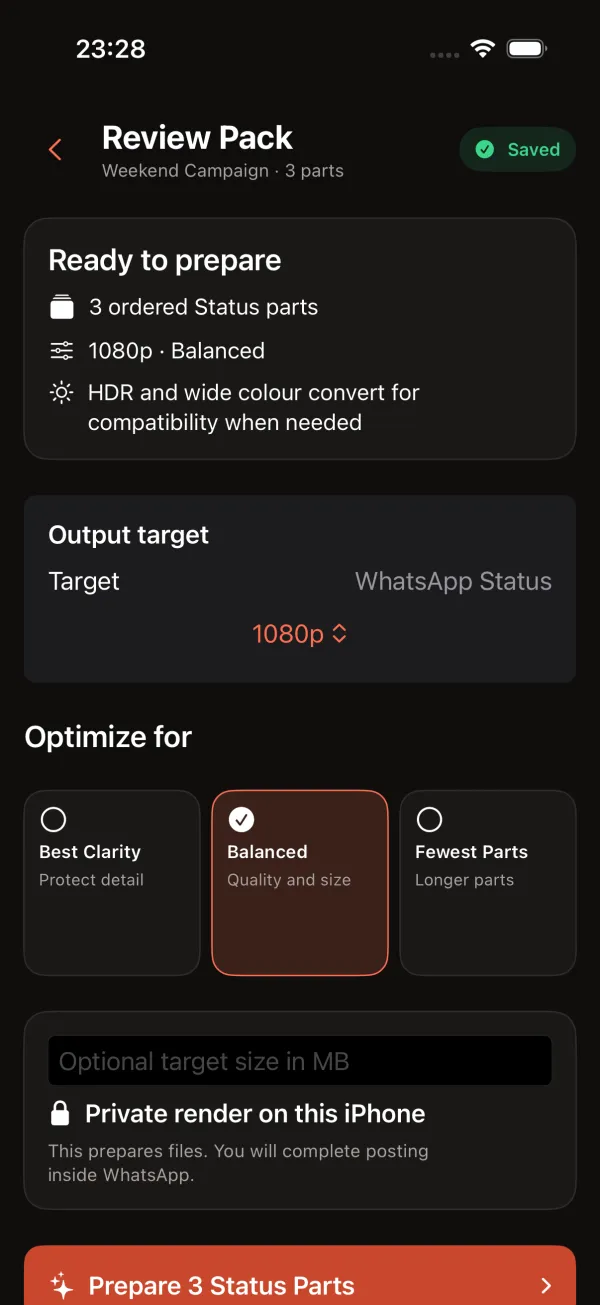
On supported models the iPhone records Dolby Vision HDR video. Apple’s setting is under Settings > Camera > Record Video > HDR Video (or HDR, depending on the model). VividStatus converts HDR and wide colour for compatibility when needed and says so on the Review Pack screen, so you do not have to change the setting for the app.
Check 3: Which camera format is set?
Under Settings > Camera > Formats, High Efficiency records HEVC video and Most Compatible records H.264, according to Apple. WhatsApp’s help page names 3GP and MPEG-4 as the video formats it supports. VividStatus always writes H.264 video in an MP4 file, whichever format you recorded in.
Check 4: Is it longer than 90 seconds?
WhatsApp names 90 seconds as the maximum for a status video. Anything longer has to be trimmed or split into parts before you post.
Check 5: Which export settings did you choose?
Quick Post writes 1080 × 1920 video at about 6 Mbit/s on average, or 8 Mbit/s for Full HD footage filmed at 50 frames per second or more. In Studio you choose the resolution and what to optimise for; the table below shows the average video bitrate each choice aims for.
Which bitrate does each Studio setting aim for?
| Resolution | Best Clarity | Balanced | Fewest Parts |
|---|---|---|---|
| 1080p (1080 × 1920) | 9.6 Mbit/s | 8 Mbit/s | 5.8 Mbit/s |
| 720p (720 × 1280) | 7.2 Mbit/s | 6 Mbit/s | 4.3 Mbit/s |
| 480p (480 × 854) | 3.6 Mbit/s | 3 Mbit/s | 2.2 Mbit/s |
Audio is 128 kbit/s in every setting. If you enter an optional target size in MB on the Review Pack screen, the bitrate is planned around that size instead.
What if all five checks are fine and it still looks worse?
Then the difference comes from WhatsApp’s own processing, which no app on your iPhone controls. WhatsApp’s help page is explicit that uploaded media may be lower in quality than the original.
What you can still do is make the content easier to keep sharp: larger text, fewer fine patterns, steady shots and good light. Check the result under Updates > My status once it is posted.
Questions about Status video quality
Should I switch my iPhone camera to Most Compatible?
Not for VividStatus: the app writes H.264 in MP4 whatever you recorded in. Apple describes High Efficiency as the space-saving option and Most Compatible as the one that uses H.264.
Should I turn off HDR video?
Only if you want future recordings in standard dynamic range. For videos you already have, VividStatus converts HDR when needed before WhatsApp receives the file.
Does a higher bitrate guarantee a sharper status?
No. It gives WhatsApp a cleaner file to start from, but WhatsApp processes the status afterwards and does not support HD media for statuses.
Sources
- WhatsApp Help Center: How to create and share a status (iPhone)
- Apple Support: Using HEIF or HEVC media on Apple devices
- iPhone User Guide: Adjust HDR camera settings
- iPhone User Guide: See photo and video information
- VividStatus on the App Store
Sources checked on 25 September 2026. Spotted a mistake? Email [email protected] and we will correct this page.